Step by step
Really turn the TV on
In standby, many TVs do not answer on the network. Turn the screen on.
Put both on the same Wi-Fi
Check the network name on the phone and on the TV. Turn off the phone’s mobile data and leave the guest network. If your router has separate 2.4 GHz and 5 GHz networks, keep the phone on the same one as the TV.
Turn on phone control on the TV
Some brands need an option turned on in the TV settings:
- LG: the phone connection option in the network settings (such as LG Connect Apps).
- Roku: Settings, System, Advanced system settings, Control by mobile apps, with network access set to Enabled.
- Samsung: the external device manager, with access notifications on.
- Panasonic: the remote control app (TV Remote) in the network settings.
- Sony Bravia: IP Control, under Home network setup.
Run Test connection
In the app, tap the green connection bar and choose Test connection. It checks the Wi-Fi, the saved TV, whether both share a network, whether the TV answers and the pairing, and tells you what to do.
Connect with the TV’s IP
If the TV still does not show up, find its IP and use Use IP in the app.
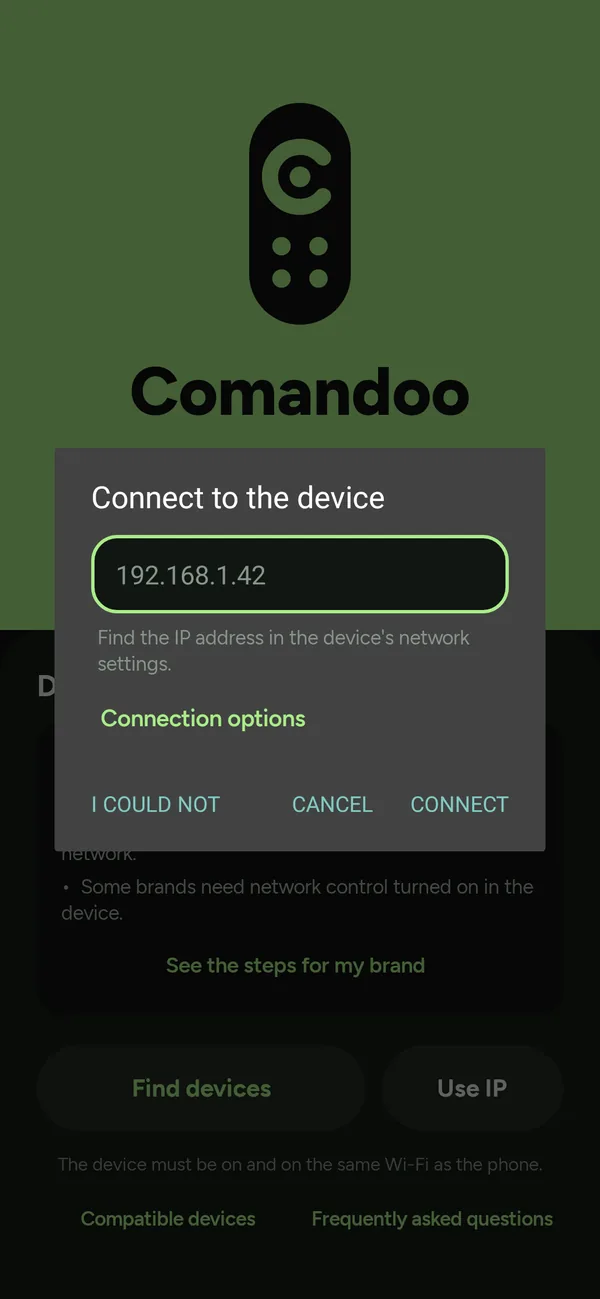
Use IP: type the device’s IP
Common problems
First, tap the green connection bar in the app and choose Test connection: in a few seconds it checks the Wi-Fi, the TV and the pairing, and tells you what to do.
How do I find my device's IP address?
In the device network settings, under Wi-Fi or Network, look for Network information or Connection status: the IP shows as four numbers separated by dots, like 192.168.1.42. You can also see it in your router's list of connected devices. Tap Use IP and type it, without http:// or a port.
The device refuses commands even though it is on. What could it be?
Samsung and Panasonic only accept commands from devices on the same network. If the phone is on a guest Wi-Fi, another router segment or mobile data, the TV refuses. Connect the phone to the same Wi-Fi as the TV and try again.
The connection drops or takes long to come back.
Comandoo reconnects by itself when Wi-Fi returns and every 30 seconds while the app is open. If the device was fully powered off, it only answers again after it is turned on. If your phone saves battery too aggressively, Android may pause the app: in Android settings, set Comandoo to no battery restriction. If it keeps happening, tap Report.
My device brand is not on the list.
Many TVs run a system we already cover: TCL, Philco, AOC, Multilaser and Semp are often Roku or Android TV, and Toshiba and Philips can also be Android TV. Try Find devices. If the TV does not show up, tap Report with the brand and model or a photo of the label so I can see if it can be added.
Still stuck? Run the guided check in the help center
Frequently asked questions
Does it work over mobile data or away from home?
No. Your phone has to be on the same Wi-Fi as the TV, because commands go straight from one device to the other.
The TV shows up but will not pair. Now what?
Make sure you accepted the request on the TV or typed the right code: the code changes on every attempt. On LG, if the TV connects but the buttons do not respond, use Pair again in the app settings.
How do I ask for help?
In the More tab, open Help and support and tap Report a problem. Tell us what happened and the TV brand and model. The answer arrives in the app.
This guide matches Comandoo version 1.24.8. Seeing something different in the app? Write to suporte@comandoo.online.