What you need
- An Android phone (Android 8.0 or later).
- A Smart TV connected to Wi-Fi, from a supported brand.
- The phone and the TV on the same home Wi-Fi.
Step by step
Install Comandoo on your phone
Comandoo is a free app for Android 8.0 or later, with no ads. It is coming soon to Google Play; the link will appear on this site as soon as it is available. No account needed.
Turn the TV on and check the network
Turn the TV on (standby is not enough) and make sure the phone is on the same Wi-Fi. Turn off mobile data and avoid the router’s guest network: many TVs refuse commands coming from another network.
Open the app and pick your TV
When it opens, Comandoo looks for devices on your network and lists them. Tap your TV. If it is not there, tap Find devices. If it still does not show up, use Use IP (see Common problems).
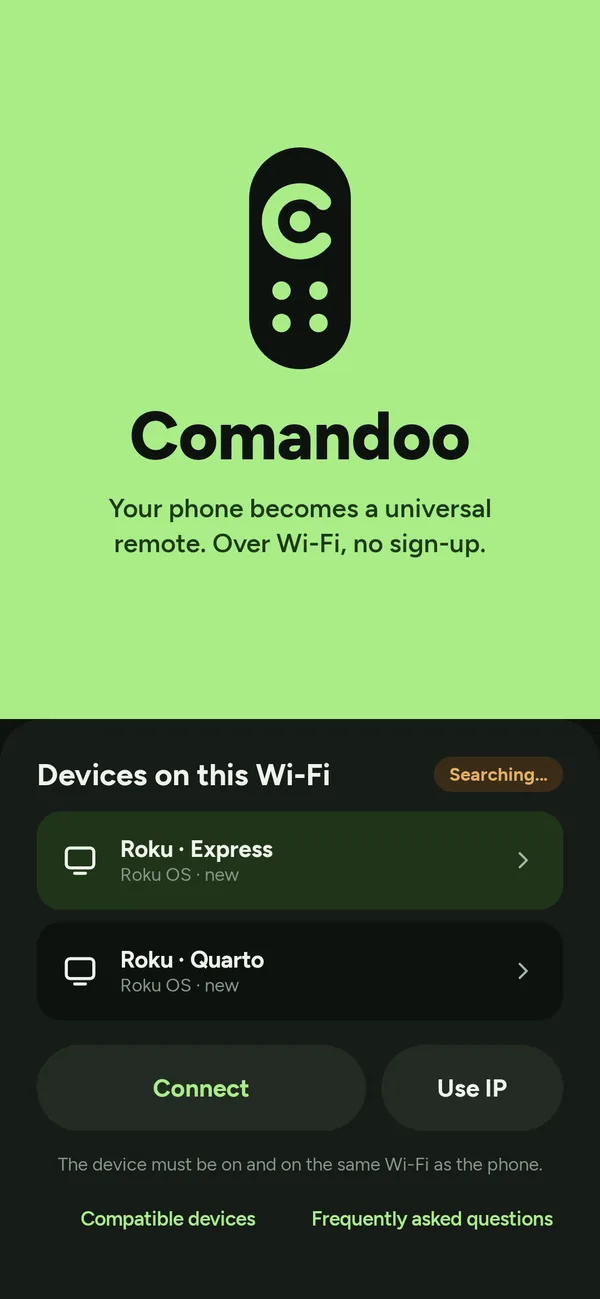
Devices found on the network · Illustrative image Confirm the pairing on the TV
The first time, the TV asks for confirmation. How depends on the brand: accept a request on screen or type a code in the app.
Brand What shows up the first time LG A request on screen. Accept it with the TV remote. Samsung A prompt asking to allow the app. Accept it with the TV remote. Android TV and Google TV A 6-character code. Type it in the app exactly as shown. Fire TV, Panasonic and Philips A 4-digit PIN. Type it in the app. Roku Nothing: there is no code. Sony Bravia The key (PSK) you set on the TV under IP Control. No original remote? On LG and Samsung the first request has to be accepted on the TV itself. See Lost your TV remote: what to do.
After that the app reconnects on its own.
Use the remote
Done: the Remote screen has the D-pad and OK, back, home, volume, mute and the power button. Buttons your TV does not accept through its protocol are greyed out.
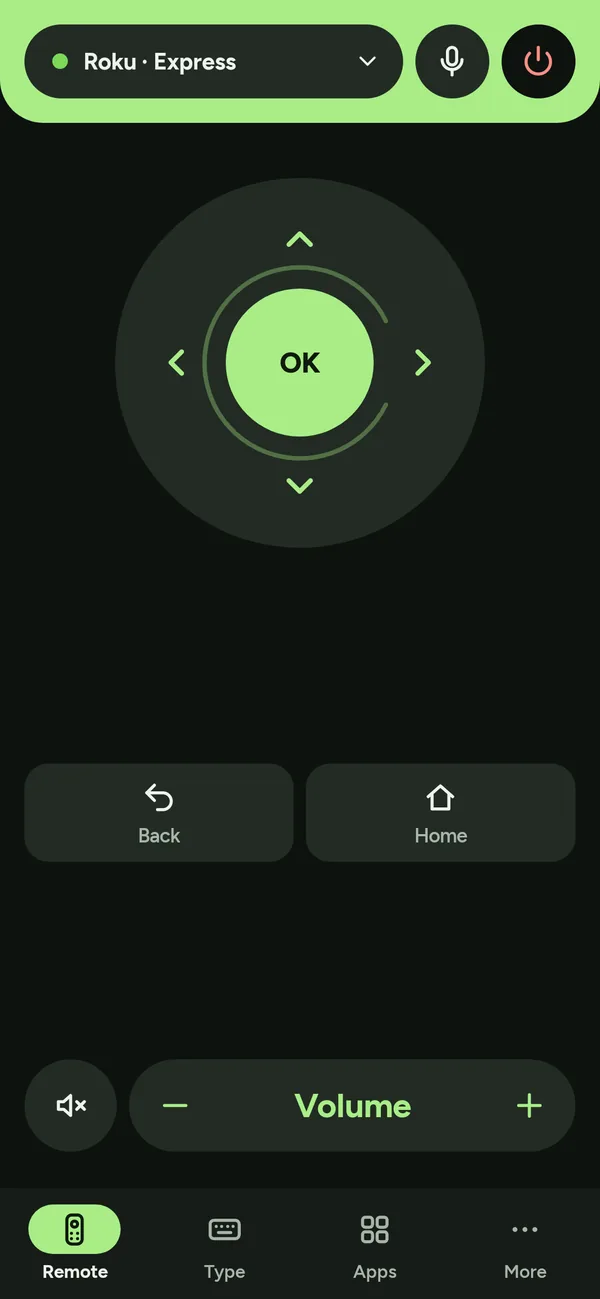
Remote screen, connected · Illustrative image
What else you can do from your phone
- Type passwords and searches. With a text field open on the TV, write in the Type tab and tap Send to the device. Read the guide.
- Speak instead of typing. Hold the voice button and say, for example, “open Netflix” or “volume 15”.
- Open your TV apps with one tap, right from the phone.
- Remote on top of other apps. The floating button opens the remote without leaving the app you are in.
Not every brand accepts every feature. The app shows only what your TV allows.
Common problems
First, tap the green connection bar in the app and choose Test connection: in a few seconds it checks the Wi-Fi, the TV and the pairing, and tells you what to do.
My device does not show up in the search. What now?
Check that the device is on (not just standby) and that your phone is on the same Wi-Fi, not a guest network or mobile data. Some brands need phone control turned on in the device settings (see your brand under Compatible devices, in Settings). If it still fails, tap Use IP and type the device's IP. If nothing works, tap Report and tell me the device brand and model.
The TV connects but ignores the buttons
On Roku, open Settings, System, Advanced system settings, Control by mobile apps and set network access to Enabled. On LG, tap Pair again in the app settings and accept the request on the TV. On Samsung and Panasonic, make sure the phone is not on a guest Wi-Fi.
Can I turn the device on from my phone?
It depends on the device. On LG, turn on Power on with mobile device (or Power on via Wi-Fi) in the TV and use Turn the device on over the network, after the app has connected once. On other brands, turning on over the network depends on the model and many can only turn off. Turning off from the app works on most.
The connection drops or takes long to come back.
Comandoo reconnects by itself when Wi-Fi returns and every 30 seconds while the app is open. If the device was fully powered off, it only answers again after it is turned on. If your phone saves battery too aggressively, Android may pause the app: in Android settings, set Comandoo to no battery restriction. If it keeps happening, tap Report.
Still stuck? Run the guided check in the help center
Frequently asked questions
Does the phone need infrared?
No. Comandoo uses your home Wi-Fi, so it works on Android phones with or without infrared.
Does it work over mobile data or away from home?
No. Your phone has to be on the same Wi-Fi as the TV, because commands go straight from one device to the other.
Is it really free?
Yes. The remote has no ads and no sign-up. In the future, some extra features may become part of an optional plan, but the basic remote stays free forever.
Does it work with any TV?
It works with Wi-Fi-connected Smart TVs from the brands on the supported list. LG was tested on a real TV; the other brands have initial support, not yet tested on a real TV. TVs without Wi-Fi will not work.
Does it work on iPhone?
Not yet. Comandoo is an app for Android 8.0 or later.
This guide matches Comandoo version 1.24.8. Seeing something different in the app? Write to suporte@comandoo.online.